
How many polygons does your model need?
September 23, 2026 · 5 min read
Polycount is a budget, not a quality setting. Pick it from where the model will be used, keep detail in the normal map, and reduce later with retopology when you need to.
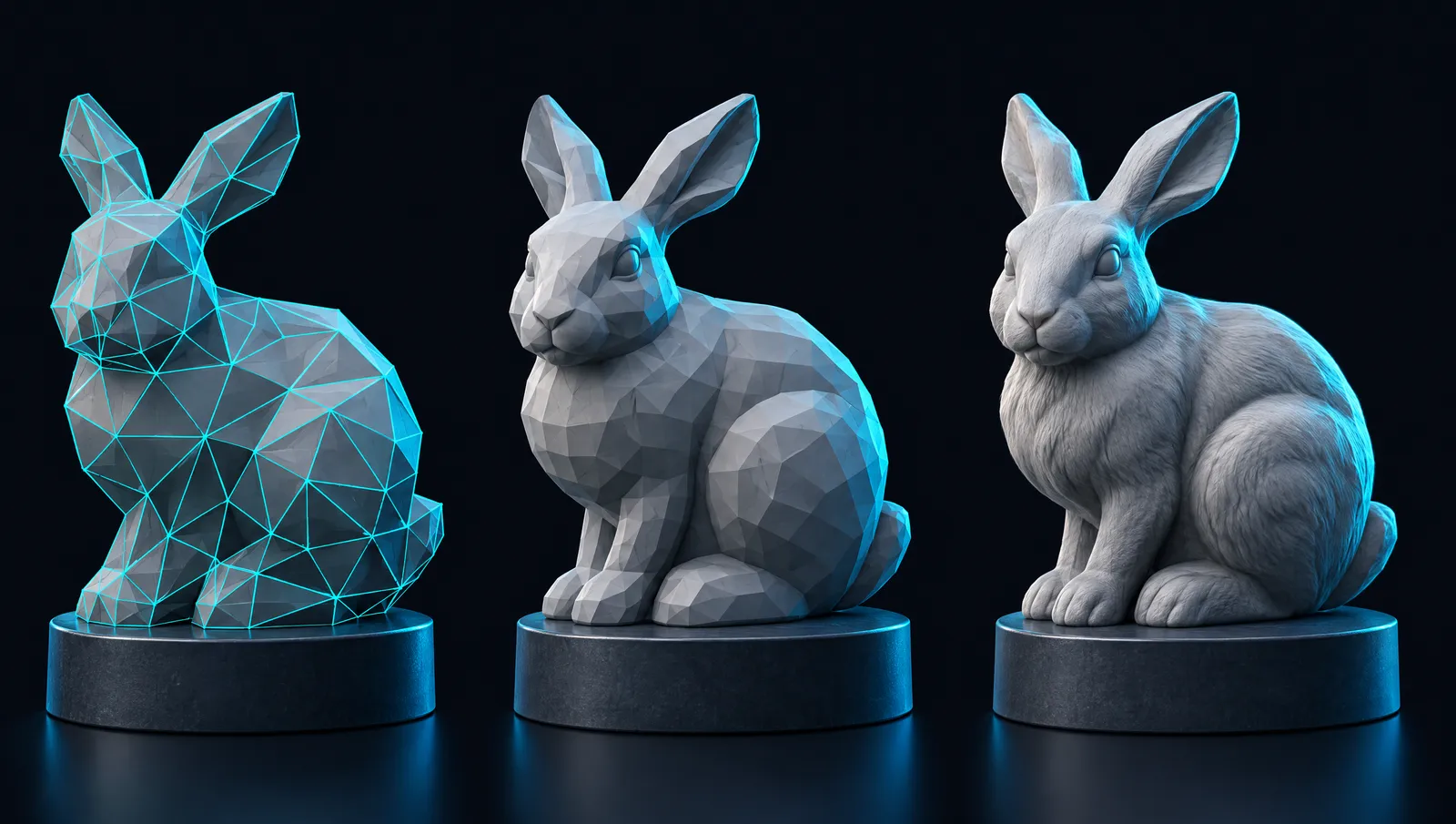
More polygons is not automatically better. Every triangle costs memory, disk space and draw time wherever the model ends up: in a phone browser, in a game running at 60 frames a second, or in a slicer preparing a print. The right polycount is the lowest one that still reads correctly at the size and distance the model will be seen.
This guide explains what polycount actually measures, how to choose a budget for common destinations, and how MeshForge's polycount and retopology options fit in.
Triangles, faces and vertices
Game engines and GPUs render triangles. Modelling tools often show faces, which may be triangles or quads (four-sided faces, each of which becomes two triangles when rendered). Vertices are the corners the faces share.
When someone quotes a "polycount", ask which one they mean. A budget of 10,000 quads is roughly 20,000 triangles. MeshForge's polycount setting is a target triangle count, so it maps directly to what an engine will draw.
Why lower counts matter
- Real-time performance. Unity's documentation puts it plainly: the fewer polygons you use, the faster your application runs, and the balance depends on your target platform.
- Memory and download size. A model on a web page has to be downloaded before it can be shown. A few hundred thousand triangles plus textures is a noticeable wait on a mobile connection.
- Editing. Dense meshes are slow to select, sculpt, UV-unwrap and rig.
- Scene totals. One heavy prop is fine. Fifty copies of it in a level are not.
Rough budgets by use
| Where it goes | Typical triangle budget | Notes |
|---|---|---|
| Mobile game prop | 1,000 – 5,000 | Many copies on screen at once |
| PC / console prop | 5,000 – 30,000 | Depends on how close the camera gets |
| Hero character | 30,000 – 100,000 | Plus lower levels of detail (LODs) for distance |
| Web viewer / product page | 20,000 – 150,000 | Weigh it against download size |
| 3D printing | As high as your slicer handles comfortably | Printers care about watertightness, not edge flow |
| Film / offline render | High, often retopologised and subdivided | Render time is the limit |
These are starting points, not rules. Your engine, your target hardware and how many copies of the model are on screen matter more than any table. Unreal Engine's Nanite, for example, is designed to render very high-detail geometry efficiently for supported meshes, which changes the calculation for projects that use it — but it does not remove the cost of download size or editing.
Keep detail in the textures
Most of the detail you see on a good real-time model is not geometry. It is a normal map: a texture that tells the renderer which way the surface faces at every pixel, so small scratches, seams and pores catch light as if they were modelled. A 10,000-triangle model with a good normal map usually looks better in an engine than a 200,000-triangle model with no maps at all.
The practical rule: spend polygons on the silhouette — the outline you see against the background — and let textures carry the surface detail.
Levels of detail
Games often keep several versions of the same model: full detail up close, and progressively lighter versions further away. If your engine uses LODs, generate or retopologise your model at the highest level you need and create lighter versions from it with your engine's or modelling tool's LOD tools.
Polycount in MeshForge
MeshForge gives you two places to control density.
Before generating
The polycount option sets a target triangle count for the generation. Leave it on adaptive if you are unsure; set a number when you already know your budget. The low-poly models are designed for game-ready meshes with fewer faces, and the smart low-poly option aims for a hand-crafted low-poly look of up to 20,000 faces. Very high counts are only available with the ULTRA geometry setting; the exact ranges are listed in the API reference.
After generating
If a model comes out heavier than you need, run the Retopology step. It rebuilds the surface at a target of 500 to 100,000 faces and bakes the detail of the original into the normal map, so the lighter model keeps most of its look. Retopology is its own step with its own price, shown before you start.
A quick decision checklist
- Where will the model be used, and how close will the camera get?
- How many copies will be on screen at once?
- Does it need to be rigged and animated? If so, clean topology matters more than raw count.
- Is it going to a printer? Then count matters little; closed, solid geometry matters a lot.
- Pick a target, generate, and check the model in the wireframe view before exporting.
Checking a model in the viewer
Before you export, look at the model with a few questions in mind:
- Wireframe view: are polygons concentrated on the silhouette and the details that matter, or spread evenly over flat surfaces?
- From a distance: zoom out to roughly the size the model will appear in your game or on your page. Detail that disappears at that size is detail you do not need in geometry.
- Normal map view: is the fine surface detail present in the texture, so that a lighter mesh will still read well?
Common mistakes
| Mistake | Why it hurts | Better approach |
|---|---|---|
| Maximum polycount "just in case" | Heavy files, slow scenes, harder editing | Pick a budget from the destination |
| Reducing a model that will be printed | Loses surface detail for no benefit | Keep it dense; fix watertightness instead |
| Reducing before checking the silhouette | Outline becomes jagged | Compare the outline after each reduction |
| Ignoring texture size | A 10,000-triangle model with 8K textures is still heavy | Match texture resolution to on-screen size |
Sources & further reading
- Unity Manual: Modeling characters for optimal performance — polygon count, materials and skinned meshes.
- Unreal Engine: Nanite virtualized geometry — how Unreal handles very high-detail meshes.
- Blender Manual: Decimate modifier — reducing polycount by hand.
- MeshForge API reference — polycount ranges and generation options.